
Connect your own domain
Serve your app on a domain you already own, with one DNS record to confirm it is yours.
If you own a domain, you can serve your app on it so visitors see your brand rather than an AppHandle address. You confirm the domain is yours with one DNS record, then point it at your app. Both steps happen where you manage the domain, not in AppHandle.
Before you start
- You need access to your domain's DNS settings — the control panel at the company where you registered or host the domain.
- You can use a domain you own (
example.com) or a subdomain of one (shop.example.com). - Publish the app first if you can, so there is something to serve when the domain connects. See Publish your app.
- One domain can be connected to one app.
Step 1 — Claim the domain in the Desk
- Open the app, select Open Session, then select Settings → Publish.
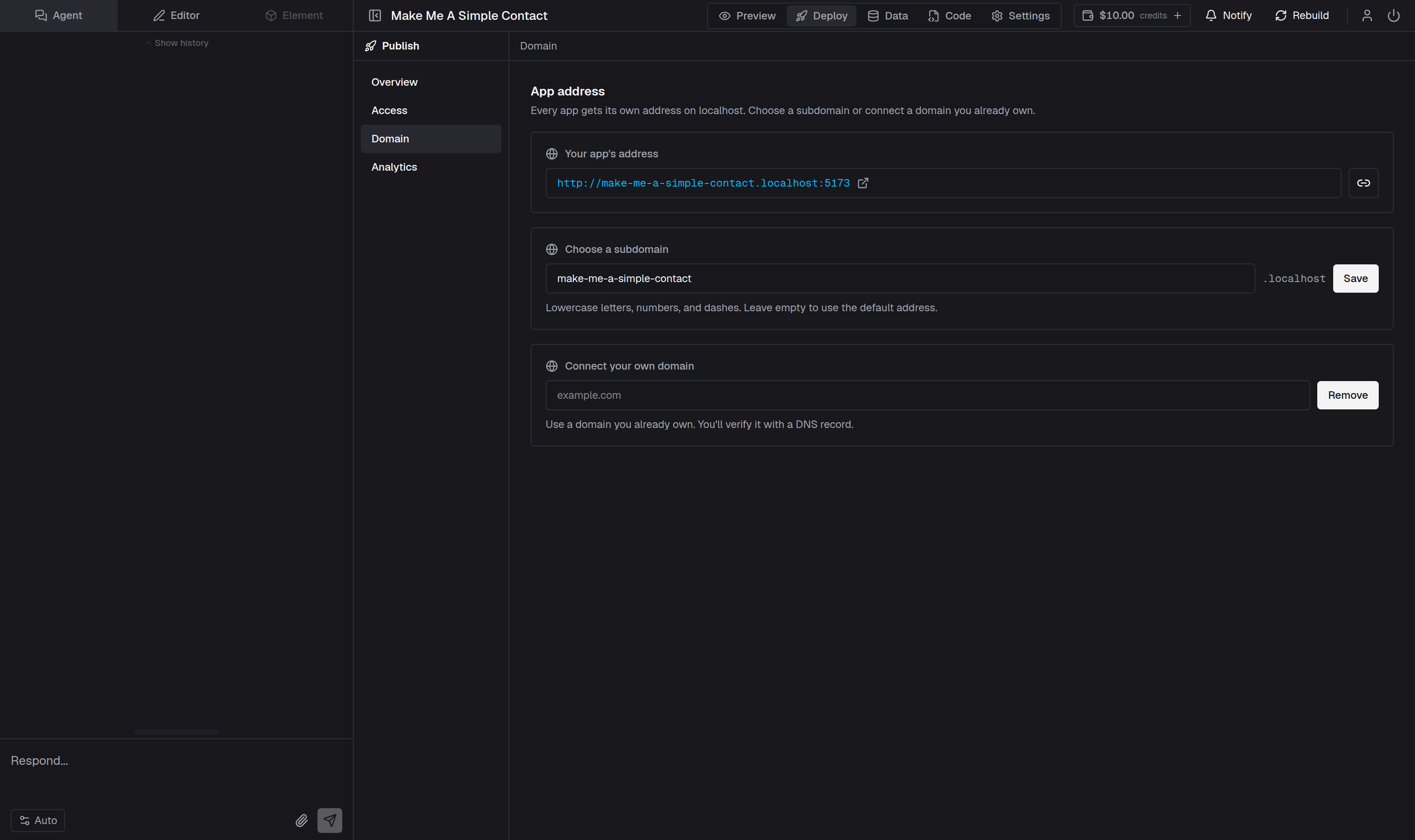
- Under Connect your own domain, type the full name you want to use, such as
example.com. - Select Save. A Verify your domain card appears with the record you need.
Enter the exact name you will serve. Only that name works: if you enter example.com, then www.example.com does not serve the app as well. If you want www to work too, set up a redirect to the verified name where you manage the domain.
Step 2 — Add the verification record
The Verify your domain card shows three values. Add them as a new record in your domain's DNS settings, where providers usually list them under "DNS" or "DNS records":
- Name: your domain, for example
example.com - Type:
TXT - Value: the
apphandle-verify=...value shown on the card
Save the record at your provider, then select Verify in the Desk. AppHandle reads your domain's DNS records at that moment. If the record has not spread yet, you see a message that it could not be found, and you can select Verify again shortly. A DNS change usually appears within a few minutes, but it can take a few hours.
Saving the domain again starts verification over: AppHandle shows a new value to add, and the domain counts as unverified until that value is found. A check that does not find the value leaves the domain unverified.
Step 3 — Point the domain at your app
Add one more record so requests reach your app:
- Type:
CNAME - Name: your domain, for example
example.com - Value: the address shown in App Link in the publish panel — select Publish above the app to open it — for example
inventory-tracker.apphandle.com
If you change the app's subdomain later, update this record so it still points at the app.
If your provider does not allow a CNAME for the root of a domain, use its alias or flattening option. If your provider offers a proxy or "orange cloud" toggle for the record, turn it off: the record needs to resolve directly for the security certificate to be issued.
AppHandle requests a certificate automatically once the domain is verified, so visitors reach it over a secure connection. Until both the verification and the record are in place, the domain does not serve the app: a visitor's browser warns that the connection is not secure rather than showing a page, and if they get past the warning they see only an App not found message.
While the domain is claimed
A domain that is claimed and not verified is held for you for seven days. After that it is released and someone else can claim it; AppHandle notes this on the app's page. Verifying the domain keeps it yours.
Your app still shows the Created on AppHandle mark when it is served on your own domain, unless you turn the badge off in Settings → Publish; a private app still asks visitors to sign in before it opens.
Keeping both addresses working
Your AppHandle address keeps working after your domain connects, so links you shared earlier still open the app. To stop using your domain, clear the field under Connect your own domain and select Remove; the app continues to serve on its AppHandle address.
If you add the domain again later, AppHandle shows a new verification value, so add the new record and verify again.
If the domain does not connect
- Confirm the TXT record uses the exact domain name and is still present; some providers drop records during edits.
- Confirm the record points at the address shown in App Link and nothing else.
- Allow a few hours for DNS changes before changing anything again.