
Publish your app
Take your app from preview to a live page people can visit on its own address.
While you build, your app stays in Preview. Publishing puts a finished version on the web at its own address, where the people you share it with can open it. You can publish as often as you like, and publishing does not stop you making further changes.
Preview and publish
The app you are working on has two sides. Preview shows the app as the agent builds it, and updates as you describe changes. A published version is what visitors see, and it does not change until you publish again — so a change you can see in Preview is not visible to anyone else yet.
Publish a version
- Open the app from your Desk and select Open Session.
- Select Publish in the bar above the app. The publish panel opens over the session, so the app stays where it is.
- Select Deploy. AppHandle builds the current version, saves it, and publishes it.
- When the build finishes, the App Link field becomes a link you can open. Select it to open the app, or use the copy control beside it. The QR control beside them shows a QR code you can scan with a phone.
The same panel carries Access, so you can decide there and then who may open what you just published. See Choose who can open your app.
There is a second way in, next to where you type: the same Publish control sits beside the agent mode at the bottom of the chat input and opens the same panel. On both controls, the refresh half on the right rebuilds the preview, and Rebuild, beside Deploy in the panel, does the same. Both are unavailable while the agent is working; the preview rebuilds by itself when it finishes.
Publishing builds the version that is open in your session, so the app needs to be open in a session when you select Deploy. After a successful publish the panel shows Deployed with the date and time.
If the build fails, the panel shows The build failed. and nothing changes for visitors. The version that was already live stays live. Ask the agent to fix the problem and select Deploy again; When a build does not work covers the rest.
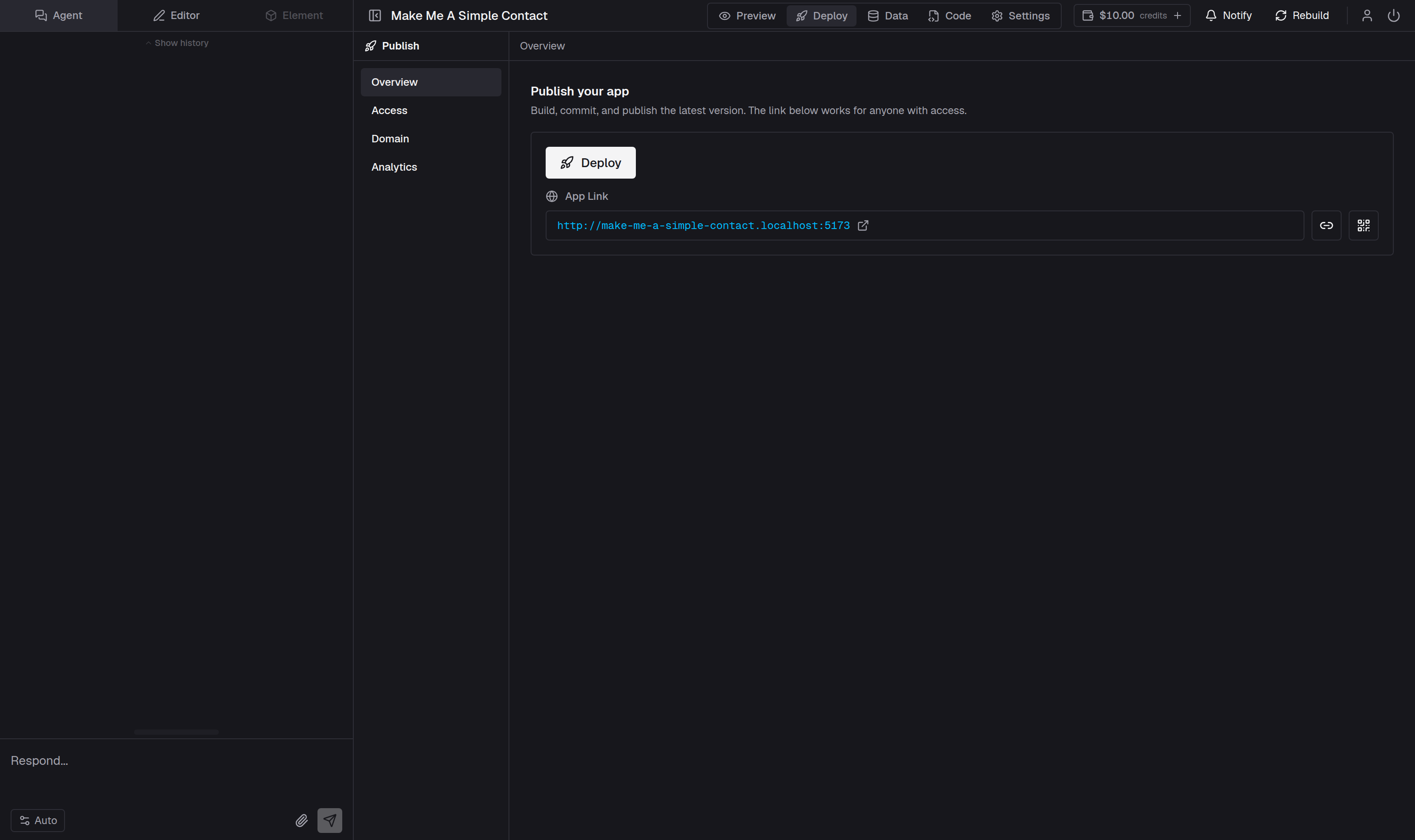
The address your app gets
Every app is served on a name of its own in front of apphandle.com. AppHandle takes that name from the app when the app is created, so an app called Inventory Tracker is served at inventory-tracker.apphandle.com unless that name was already taken. You can replace the name at any time; see Claim a short address.
The app is also served at an address built from its id, which looks like 7f3c1b90-2f4a-4c1e-9b77-1a2b3c4d5e6f.apphandle.com. That address always works, and it is the one that keeps working if you change the name. Renaming the app changes neither address.
You can serve the app on a domain you already own instead; see Connect your own domain.
The address and the choice of who can open the app live in Settings → Publish, in the Address & access card.
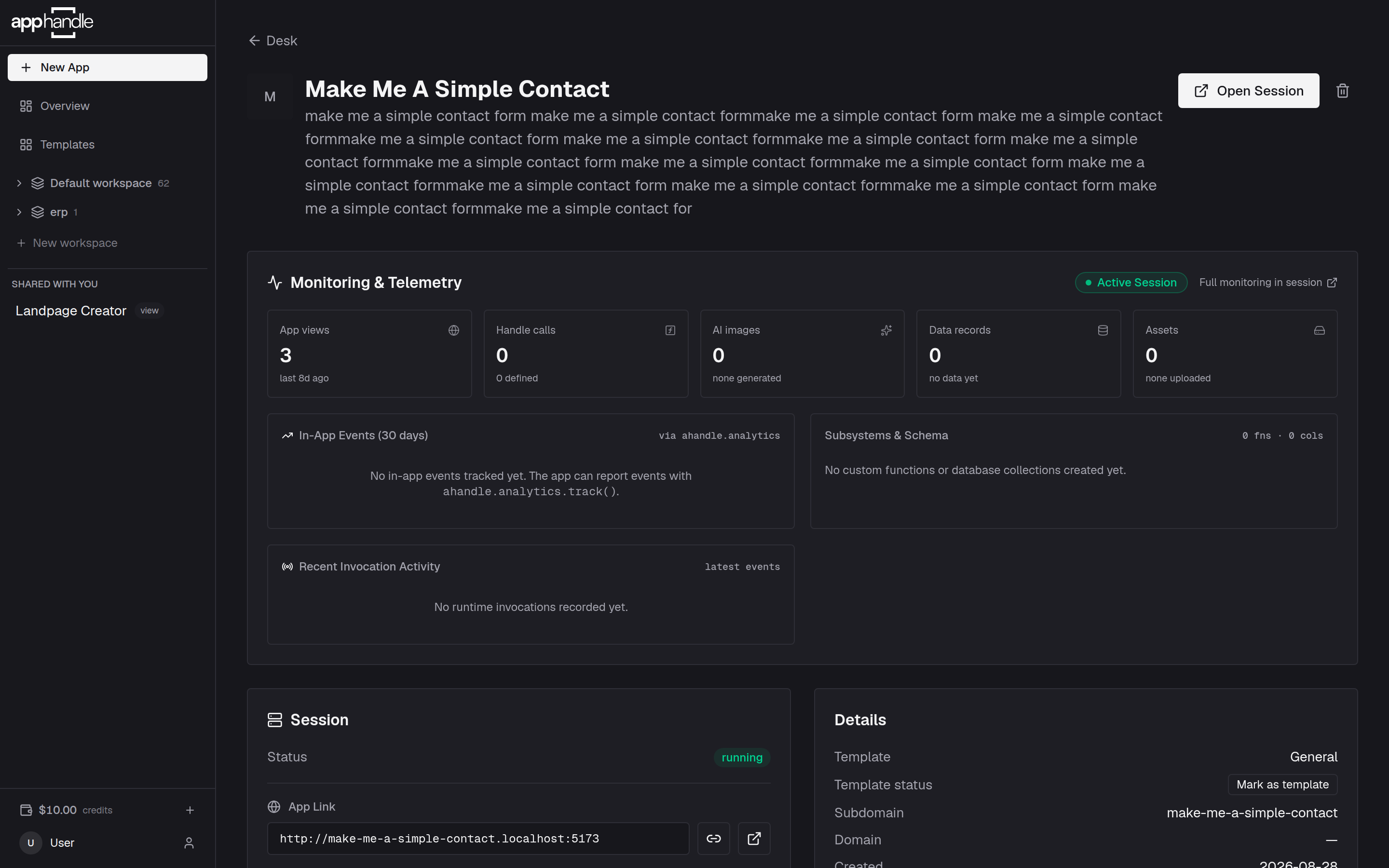
Before the first publish
Until you publish for the first time, the address is reserved but nothing is served there. The publish panel says Your app's address is reserved, but nothing is live yet. Publish to put the current version online. The App Link is greyed out there, with the note This link opens once you publish the app. Anyone who opens the address in the meantime sees a page headed This app isn't live yet.
What every published app carries
A published app shows a small Created on AppHandle mark in the bottom corner of every page. AppHandle adds it when the page is served, so it appears on your AppHandle address and on your own domain alike.
The mark is on by default. To remove it, open Settings → Publish and turn off Created on AppHandle badge under Address & access. The change applies to the published site from then on; there is nothing to publish again.
A public app also tells search engines they may list it, so it can appear in search results. A private app is closed to search engines and asks visitors to sign in first. Choose who can open your app explains the difference.
Two files decide how search engines and phones treat the app, and AppHandle writes both for you from the app's own name and address:
robots.txtandsitemap.xmlare generated for every app. They always name the app's current address, so they stay right when you rename it or connect a domain of your own. You do not need to add them, and a copy inside the app is not served.- The app's name and description are what a phone shows when someone installs the app on their home screen, together with the app's icon. Change them under Settings → App — the App name and Description fields (or ask the agent in the chat) — and the installed app follows. The icon and the colors stay yours to set in the app itself.
Publishing an update
Publishing is a step you repeat, not a one-time switch. After you change the app in the chat, select Publish again and then Deploy. Visitors keep seeing the last published version until you do. Publish whenever the current version is the one you want people to use.
Taking an app down
Publishing is not the same as deleting. If you need to stop other people opening the app, you can make it private, and you can delete it permanently. Both are covered in Take an app down or delete it.
Where to go next
Send the address to the people who need the app — Share your app explains what they will see. To keep a copy of the work, see Keep a copy of your app.