
Finding your way around the desk
A tour of the desk: where your apps live, how to search, and where your credits and account settings are.
The desk is your home in AppHandle. It lists the apps you have built, the apps others have shared with you, your workspaces, and the templates you can start from. Everything begins here, and this guide names the parts you will use most.
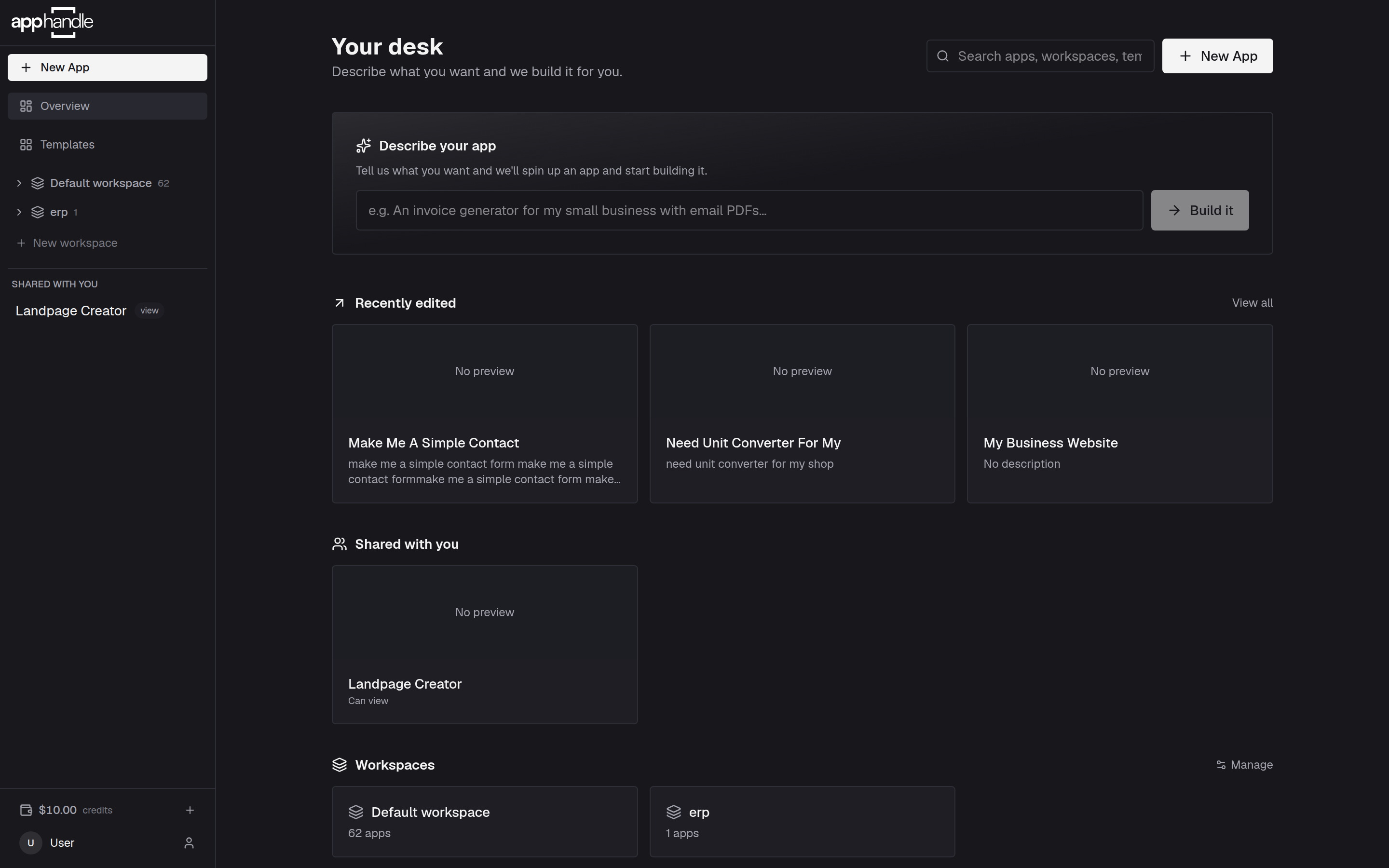
Overview
Overview in the sidebar opens the desk's main page. It holds the Describe your app box, the apps you worked on most recently, your workspaces, and a selection of templates.
Search
The search box at the top of the page looks through apps, workspaces, and templates at the same time. Type a few letters of a name and the page narrows to matches. Clearing the box restores the full page.
New App and Templates
- New App opens a form where you name the app, describe it, choose the model that builds it, and pick a template to start from.
- Templates opens the full template list. Each entry is a working app you can copy as your starting point; see Start from a template.
Both are in the sidebar, and New App also appears at the top right of the Overview. Two more entries sit below them: AppHandlers, the directory of people who can be hired to work on an app, and Messages, where those conversations live. A number appears beside Messages when something is waiting for you.
Docs and Support
At the bottom of the sidebar, below your apps, Docs opens these guides on the public site — once you are signed in, this is how you get back to the documentation without typing the address. Support, beside it, opens the support form in your account settings. The desk itself stays where it is; nothing you are working on is affected.
Your apps, grouped by workspace
The sidebar shows a group for the Default workspace, and for any other workspace that holds at least one app, with the number of apps beside each group. Expand a group to see its apps and open one.
On the Overview, the Recently edited section shows the nine apps you touched last, and View all appears once you have more than nine. It expands the list, and Show less collapses it again. Workspaces are listed in their own section with a Manage control for creating and renaming them — see Organise apps into workspaces.
Until you have built something, the section reads "No apps yet — describe one above."
Shared with you
Apps that other people have shared with you appear here, each marked Can build, Can edit or Can view. A shared app opens its own page, and an app you can only view opens at the app's address instead. The section is hidden while nothing has been shared with you.
Credits and your account
At the bottom of the sidebar, the credits chip shows what you have left this month — the included allowance first, then your balance — and reads credits. Select it to add more.
Below the chip, your name opens your account settings, where you manage:
- Profile — your account details.
- AppHandler — your profile, if you also work as one.
- Models — the model keys that build your apps.
- Team — the people you share apps with often.
- Integrations — external accounts your apps can use.
- Support — tell us what went wrong.
Keys and tokens are not here: a credential belongs to one app, so it lives in that app's Settings → Secrets.
The model an app builds on is not chosen inside a session either. It is set on the app's Details card, on the app's own page, and you can change it there at any time.
When you are ready to build, continue with Create your first app.