
What AppHandle is
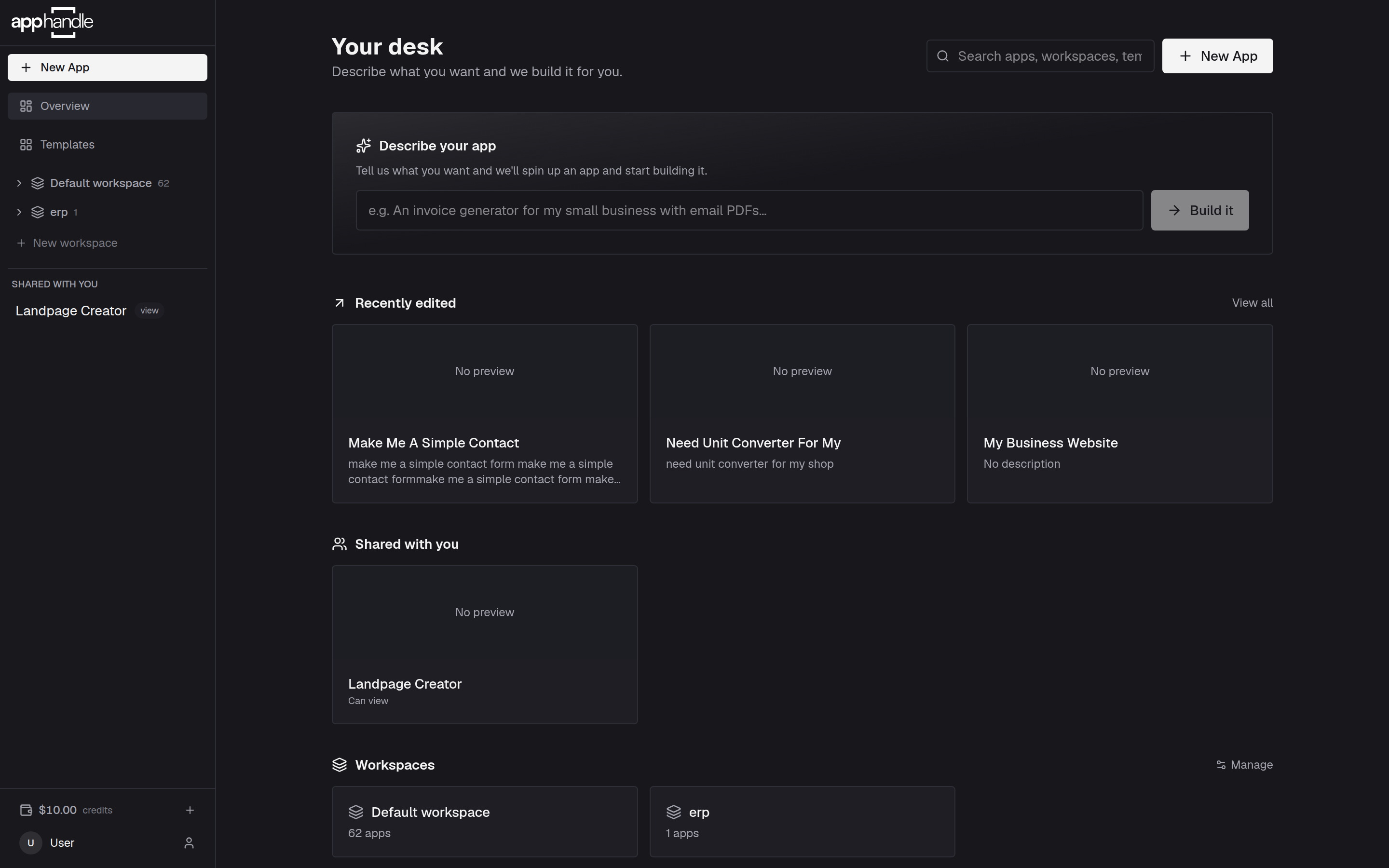
Describe the app you need in plain language, and AppHandle builds it. Here is what that means in practice.
You describe it, AppHandle builds it
AppHandle builds apps from a description. You write what you need the way you would explain it to a colleague, and an AI agent turns it into a working application — screens, navigation, and a database included.
You never have to write code. There is no file tree and no terminal. There is a code view if you want one — the code is yours — but your job is to describe what the app should do, and the agent's job is to build it and keep it working.
What you can build
Anything that stores and works with information:
- A classroom tracker for attendance, grades, and parent contacts
- An inventory list for a shop, with low-stock warnings
- A booking form for appointments, with a list of who booked what
- An internal tool that replaces a spreadsheet your team keeps emailing around
- A small customer portal with its own sign-in and a page for each client
If you can describe the information and what should happen to it, it can usually be built. Apps that need to talk to another service — Google Sheets, Slack, Stripe, or an API of your own — are covered in Integrations.
The three things you do
Building an app with AppHandle comes down to a short loop:
- Describe. Write what the app should do, in the chat.
- Look. The preview updates as the agent works. If something is wrong, say so in plain words — "the total should be in euros" — and it is fixed.
- Publish. When it works, publish it and share the address.
Everything else in these guides is detail on those three steps.
The parts of the screen
Once you open an app you will be working in a screen with two halves.
The left column has three modes: Agent, Editor and Element. Agent is the chat, where you describe changes and where the agent reports what it did. Editor is where you change how the app looks and what sits on the page, and Element stays out of reach until you select something in the preview to work on.
On the right is your app, running for real. You can click through it exactly as a visitor would.
Above the app there are four tabs: Preview, Data, Code and Settings, and a Publish button beside them. Preview shows the app as it is being built and the other three are where you look at what the app has stored, read the code behind it, and change the app's settings. Publish opens the panel that puts a finished version on a live address, without leaving the app you are working on; the same panel is one click from the chat input, as Deploy beside the agent mode.
What it costs
Building runs on an AI model, and your account needs a way to reach one. Either connect a model key of your own, or use the free hosted AI usage included every month; beyond that the hosted model needs credit. If you have neither a key nor credit, the desk tells you so before anything is created.
That choice is made before you start, not inside the app's session: while you are working on an app there is nothing to pick from. The details are in Credits and top-ups, and Bring your own model key covers the alternative. Published apps use a small amount of storage and database on top.
Where to go next
If you have not built anything yet, start with Create your first app. If you already have something running and want to make it better, jump to Change your app.