
Create your first app
Describe what you need in plain language and watch AppHandle build it. No code required.
Your first app is one description away. You type what you need on your desk, AppHandle builds it, and the result appears in a live preview. This guide follows that path from start to finish.
Get ready
AppHandle needs an account before it can build anything. Create one with your name, your email and a password, or use Google or GitHub. We send a link to your email to confirm the address, and that link signs you in, so it takes you straight to your desk.
Once you are signed in, the desk checks that a build can run on your account. It does this before anything is created, so you never end up with an app that cannot be worked on.
What a build needs
Building runs on an AI model, and there are two ways to supply one. You can connect a model key of your own, or use credit on your account — and every account includes free hosted AI usage each month, so the first build needs nothing. A build needs at least $0.25 of credit to start.
If you have neither, you are shown Connect OpenRouter or add credits, with the message "Connect your OpenRouter account to build on your own models — no key to copy. Or add credits to build with Coder-MAX." Connect OpenRouter comes first because it needs no key to copy; Add credits and Use your own model key sit beside it. No app is created until you have one of the two.
If your credit is below the $0.25 a hosted build needs to start, the desk says so. The monthly included hosted usage counts toward it, so a new account can start before adding anything. The smallest top-up you can add is $5. Credits and top-ups covers paying, and Bring your own model key covers the other route.
Open your desk
Sign in and you land on your desk, the page that holds every app you build. There are two ways to start one: the Describe your app box near the top, above the list of your apps, or the New App button.
The home page stays reachable once you have an account: the AppHandle logo at the top left of your desk opens it, and Open Desk in its header brings you back.
The box is the shortest route to a first result, so this guide uses it. New App is for when you would rather name the app yourself and choose its model and starting point.
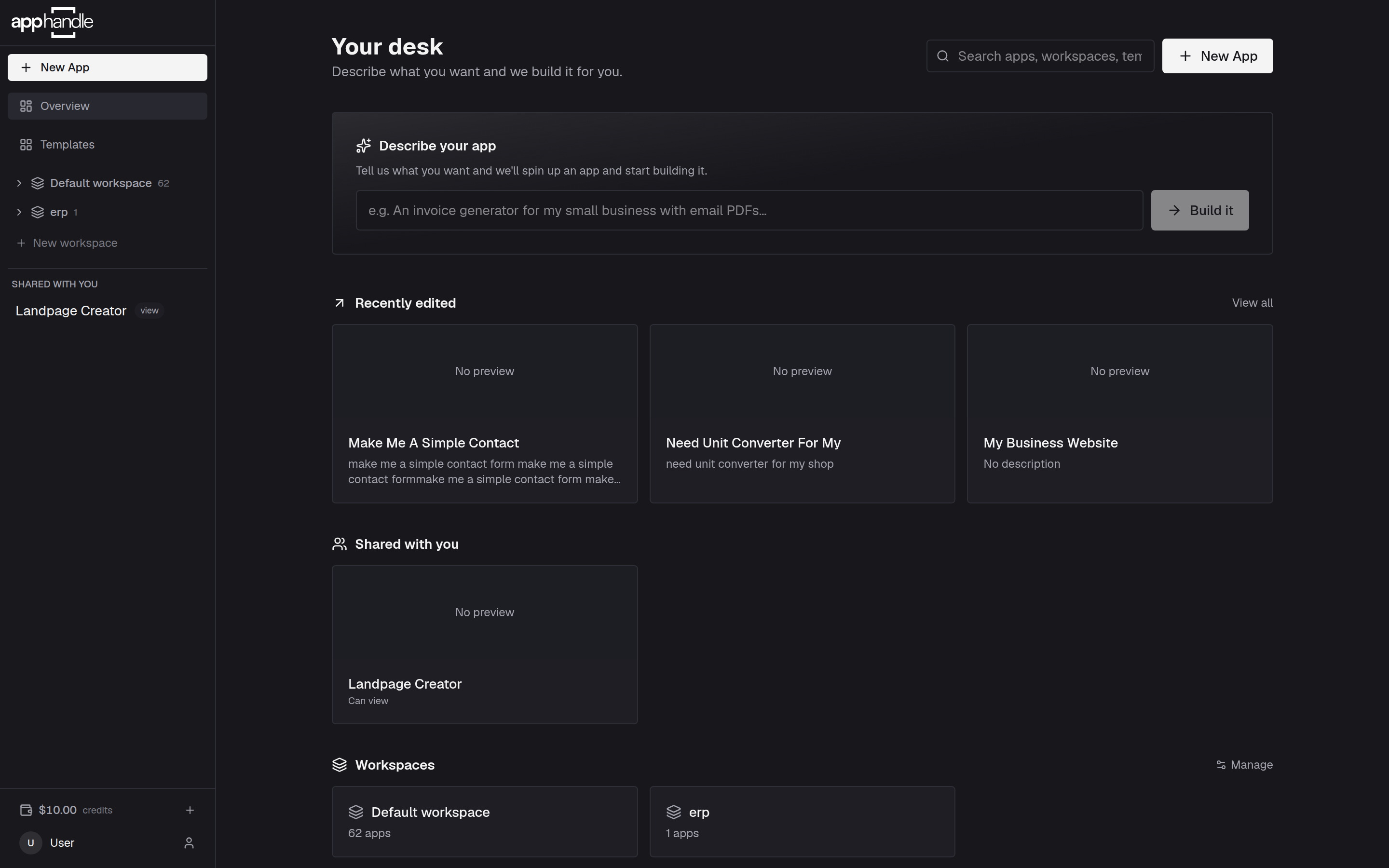
Describe your app
Type what the app should do, the way you would explain it to a colleague. One or two sentences are enough to start:
A booking form for my salon. Clients pick a service and a time, and I see the list of appointments for each day.
Select Build it, or press Enter. AppHandle names the app from your first few words and creates it, then opens its session with your description already sent to the agent. You can change the name later.
Write the description around what the app tracks and what people do with it. Describe what you want covers that in detail.
The New App form
New App opens a form with four things to fill in: App name, Description, Model and Template. Name the app and say what it should do, leave the model on the default if you are unsure, and choose a starting point — the first template is selected for you.
Select Create App. The app is created and you land on its own page, which gathers everything about the app in one place. Select Open Session there to start the agent on it. The same page is where you change the app's model later.
While it builds
Once the session is open the chat is on the left and the app is on the right.
The agent's first act is to write out its plan as a short list of goals, which appears above the message box and fills in as the work progresses. It then describes the structure it has in mind and asks you to approve it before it starts building.
If your first description leaves something important open, the agent asks you a question first, one at a time. Answer it and the work carries on. Nothing is built until you have agreed on the direction.
See it in Preview
The Preview tab shows your app running, exactly as a visitor would see it. Click through the pages and try the actions you described.
When something is not right, say so in the chat in plain words — "the total should be in euros" — and the agent changes the app. The Publish button above the app is where a finished version goes live; see Publish your app when you are ready for that.