
Build with your own model key
Connect a provider key, make it your default, and build without using credits.
The agent that builds your app works through an AI model. You can use AppHandle's hosted model and pay from your credits, or connect a key from a provider you already pay for. With your own key, AppHandle does not charge you for model use: you pay the provider directly, on their terms.
Open the Models section
- In the Desk, select your account name at the bottom of the sidebar.
- Open Account settings.
- Select Models.
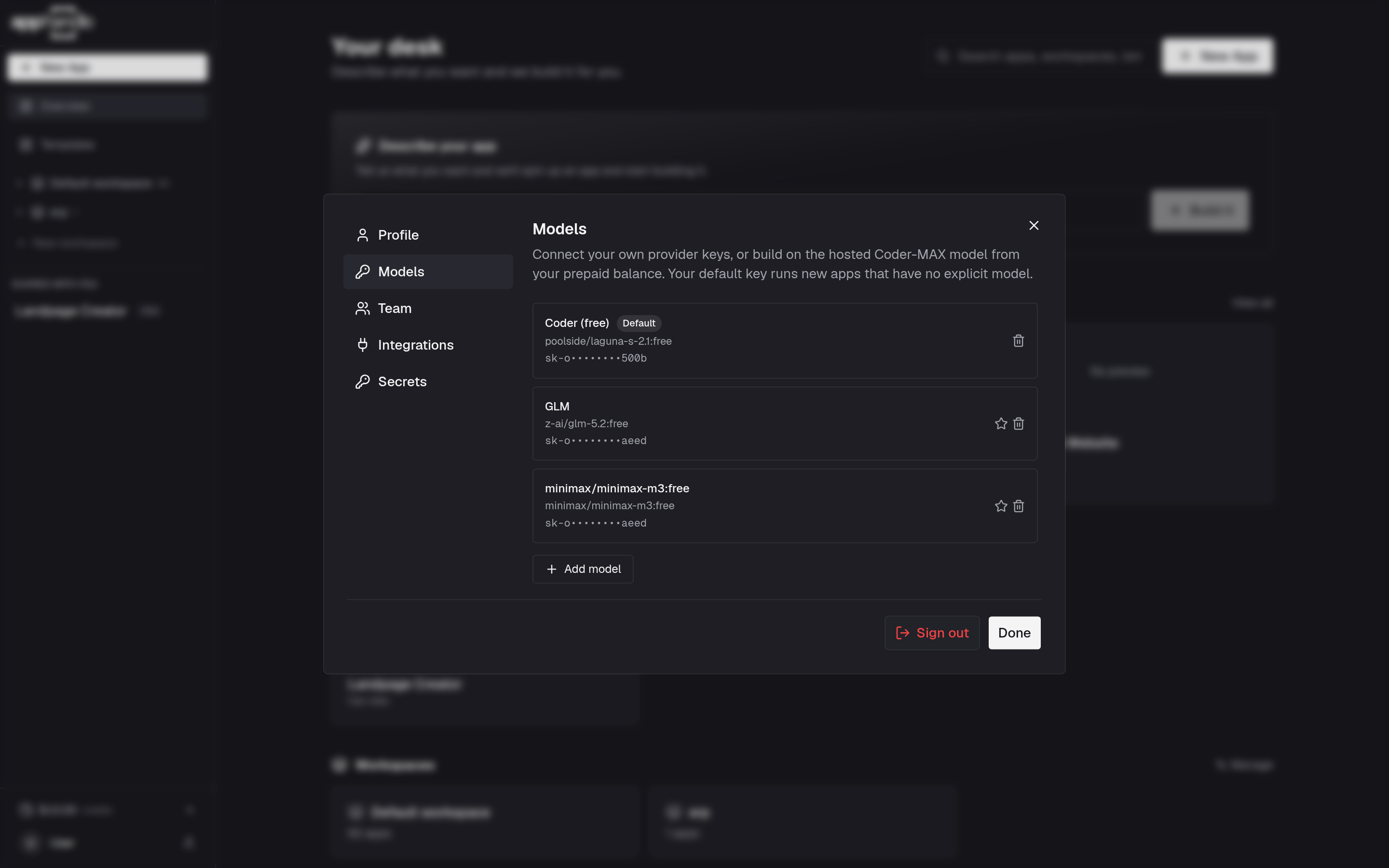
Connect OpenRouter (no key to copy)
This is the fastest way to get a key. OpenRouter hosts free models as well as paid ones, so you can start without spending anything.
- Select Connect OpenRouter.
- Sign in to OpenRouter, or create an account there, and authorize AppHandle.
- You are returned to the Models section with the key already in place.
While authorizing, OpenRouter lets you set an optional credit limit for the key it creates. If you set one, the agent can never spend past it, and you can change or remove it later in your OpenRouter account at any time. OpenRouter keys in the Models section takes you there.
Linking starts you on a free model. From there, Add model adds as many others as you like from the same account — free or paid — with no second authorization. The list you choose from holds only models that can use tools, because the agent needs that to build. Each one becomes its own choice in the model picker, so different apps can build on different models. Change model re-points one of them, and the star makes one of them your default.
Every model the picker offers supports the tool calling the agent needs. Paid models are billed by OpenRouter against your OpenRouter balance.
If the key stops working, Reconnect walks the same flow and replaces the stored key — your models and your default are left untouched. Disconnect removes the account and every model you added from it. Connect OpenRouter also appears wherever a build is blocked, so you never have to hunt for it.
Add another provider's key
Use this for OpenAI, Anthropic, Google AI, or DeepSeek.
- Select Add model.
- Choose the provider: OpenRouter, OpenAI, Anthropic, Google AI (Gemini), or DeepSeek.
- Enter a label if you want one, then the model name.
- Paste your API key for that provider.
- Select Save.
AppHandle checks the key with the provider before saving it. A mistyped or expired key is rejected there, instead of failing in the middle of a build. Once saved, the key is stored and shown only in a masked form.
Your first key becomes the default
The first key you add becomes the default for new apps, and the list marks it with a Default badge. To use a different key by default, select the star beside it; its tooltip reads Set as default. To remove a key, select the delete control on its row.
A key is used only for apps you build. Using it never draws on your credits.
Your default image model
The same Models section also holds your Image model, the model images start from in the Studio and in the agent's image tool. Each choice in the list shows its price, and leaving it blank uses the catalogue default. An app can override it with its own choice when images are made.
Which model an app uses
When you create an app, the Model field decides what builds it. Leave it on the default to use your default key, or pick a specific model.
For an app you already have, open it from your Desk and look in the Details card for Model.
If an app is set to the hosted Coder-MAX model, its builds are billed to your credits. Everything else about the app works the same.
Returning to the hosted model
To build on the hosted model instead of your key, pick Coder-MAX where the model is chosen. Building on it needs credits; see Credits and top-ups.
To stop using a key altogether, remove it in Account settings → Models. If you remove every key and have no credits, a build cannot start, and the Desk shows a setup step instead.
What AppHandle can and cannot see
Your key is stored so the agent can use it on your behalf, and AppHandle shows you only a masked version afterwards. The provider's charges for that key appear on your provider account, not here.
Removing a key from AppHandle does not delete it at the provider. For a connected OpenRouter account, revoke the key in your OpenRouter account if you no longer want it to exist.
Where to go next
Credits and top-ups explains the hosted model and the metered features. Plans and limits covers what the free allowance includes and what your balance pays for.