
Ask for changes in the chat
How to describe what you want changed, read the agent's replies, and answer when it asks you a question.
The chat is how you work on an app. You write what you want in plain words, the agent builds it, and the result appears in the app view to the right. There is nothing to set up and no syntax to learn: a sentence describing the change is enough.
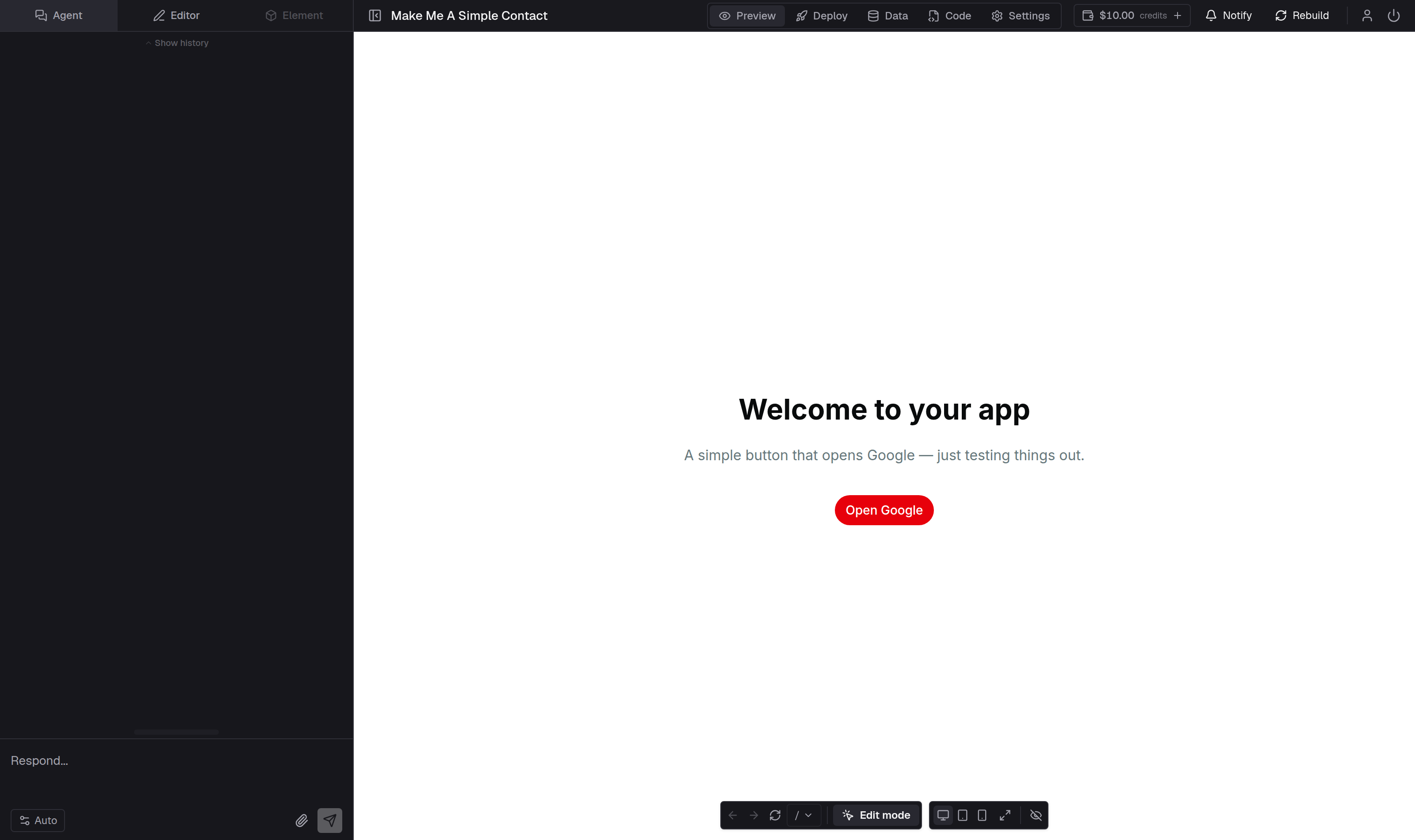
Writing a request
Open the Agent mode on the left and type into the box at the bottom of the column. Say what you want to be different:
Add a phone number to each client and show it in the client list.
You can send several small requests instead of one large one. A single clear change is easier for the agent to build and easier for you to check. Press Enter to send; hold Shift and press Enter to start a new line.
You can also attach a file. Select the paperclip above the message box — it is titled Attach or paste a file — drag a file onto the chat column, or paste a screenshot or file from your clipboard with Ctrl+V (⌘V on a Mac). Pasting works anywhere in the chat column, not only with the cursor in the box. A picture dragged out of another page is added the same way when that site allows it; if it cannot be read, save it and drop the file. Describe what to do with the file in the same message, or send the picture on its own when it is the whole request. The file waits above the box until you send, and it stays with your message afterwards: a screenshot you sent sits in your own message, above the agent's reply, and it is still there when you scroll back through the conversation or open Show history. Select a picture to see it at full size over the chat; if a request carried several, the arrows move between them. If an upload fails, select the retry control beside the error to try it again. An attachment is temporary and belongs to the conversation, not to your app — Use images and files explains what happens to it.
On the first screen of a session, under the message box, one practice at a time appears in a rotating hint: describe what you want in plain language, give the agent as much context as you can, ask for one change at a time, paste a link, paste a screenshot from the clipboard, or attach a file to work from, select an element in the preview to show what should change, use the Image Studio for pictures, and ask the agent when something about AppHandle is unclear. Select the hint to move to the next one; it goes away with your first message. Describe what you want covers the same ground in more depth.
What happens after you send
The agent takes the request and starts working. Sending begins a new page in the column: the conversation before it scrolls up out of the way, and your request is the first thing in view with the reply starting under it — even if you had scrolled up to re-read an earlier turn. While it runs:
- Your request holds the top of the column, with the reply written under it.
- A line under the chat names the step in progress, with a count beside it. Select it and the earlier steps expand below.
- The reply itself streams into the column as the agent writes it.
- The app to the right updates when the work is finished.
You do not have to wait for the run to finish before saying the next thing. Type a follow-up and select Send — or press Enter — and it is queued; the agent takes it as its next turn once the current step completes. The stop control stays beside it.
When the run ends, a small summary card closes the turn. It shows the short description of the change, how many files it touched, and how many lines were added and removed, so you can see at a glance what one request produced.
The turn stays in the column when it finishes, and so do the turns before it: your five most recent requests and the replies to them stay in view, and Show history opens the rest of the conversation.
Every message in the column can be copied. Point at your request or at the agent's reply and a copy control appears under it: selecting it copies that message's text, and the icon turns into a check to confirm it. The cards that record what you answered when the agent asked a question carry the same control.
When the agent asks you a question
Sometimes the agent needs a decision before it can continue — which of two layouts you meant, or whether a value applies to one record or all of them. It does not guess. Instead it puts a card above the message box and waits. The conversation above the card stays where it is, so you can read back through it while you decide.
The card asks its question with buttons, choices, or a short text box, plus Other when none of the offered answers fit. Choose an answer and select Confirm; your answer stays in the chat under the request, so you can always see what you told it. If you would rather not answer, select Skip and the agent carries on without it.
While a question is waiting, the message box says Answer above... and the agent does not start new work.
What the agent works on
The agent works on this app and nothing else. Who you are, and what you are allowed to change, come from your account and your access to this app — not from anything said in the chat. It has no staff or administrator mode, and it does not answer for AppHandle itself beyond what these guides cover.
When something genuinely needs a person — an account or billing problem, or a fault in the platform — the agent points you to Report a problem instead of answering outside its role. See Get help and report a problem.
Giving feedback
Read the app the way a visitor would, then say what is wrong in the same plain words you used before:
The total should be in euros.
The save button is too small on a phone.
That list should show the newest bookings first.
Feedback is normal and expected. You are not undoing work or starting over — you are describing the next change. Details that are concrete work best: the wording you want on screen, the order of a list, the currency or date format, the colour of a button.
If you select an element in the app first, the agent knows which one you mean, so short requests such as "make it red" are understood. Your last five requests stay in the column; Show history at the top of it lists everything you have asked for, so you can find an earlier request and refer back to it.
To keep going, see Change your app.