
Preview and publish
Check your app in Preview, then publish a finished version from the Publish panel.
A row of tabs sits above the app, and the left column holds the Agent chat. Preview shows your app running as it is right now, with every change the agent has made. Data holds your app's stored records, and Settings holds its configuration, its files, and its history. Code shows the app as written text, which most people never need. You can move between the tabs at any time, and previewing is always safe — nothing you open or click there is published.
Publish is not a tab: it is the control on the right of that row, and it opens the publish panel over the session so the app stays where it is. The same control sits beside the chat input. Both are one control with two halves: Publish on the left, and a refresh control on the right that rebuilds the preview.
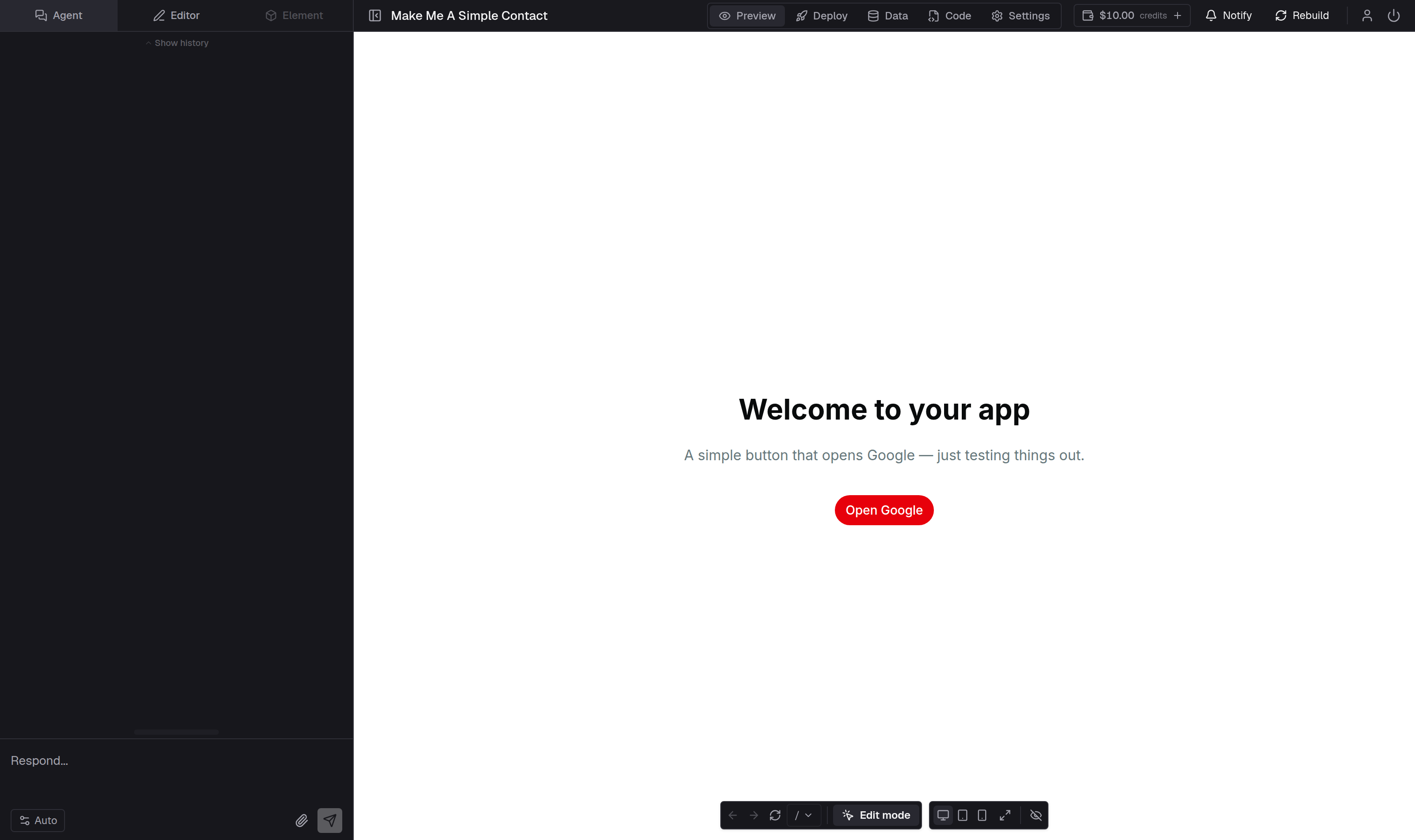
Preview
Preview is the tab you will spend most of your time in. The app is running for real, so you can click buttons, fill in forms, and open pages exactly as a visitor would. Changes appear here as the agent finishes them.
If the app has not been built yet, the tab tells you so and asks you to select the refresh control beside Publish. During a build you see a short progress message instead of the app, and the app appears on its own when it is ready.
If a build fails, the preview does not go blank. It keeps the last version that worked and shows a notice saying the latest changes are not showing yet. Select the refresh control — beside Publish, above the app or beside the chat input, or Rebuild beside Deploy in the publish panel — when you want to try again. While the agent is working, the control is unavailable: the app is still being changed, and the preview rebuilds by itself when the agent finishes.
When the app itself hits an error while you are using it, a red bar appears across the bottom of the preview. It names the error and offers Ask agent to fix, which sends the details to the agent, and Dismiss.
Going through the app as a visitor
The small toolbar at the bottom of the preview offers:
- Back and Forward, for moving between the pages you have opened.
- Refresh preview, which reloads the app and is useful when something looks out of date.
- The page menu, titled Routes, which lists the pages in the app and opens any of them.
- Desktop, Tablet, and Mobile, which change the width of the preview so you can see how the app behaves on a phone or a tablet.
- Full preview, which gives the app the whole window. Press Escape to leave.
- Open in a new tab, which loads the same preview as a full page in its own browser tab, with nothing of the desk over it. The app's own links, its pages, and the browser's Back and Forward buttons all work there.
- The eye control, which hides the toolbar so nothing sits over the app.
Select Edit mode before clicking the app when you want to change a specific element rather than use it. While it is on, the control reads Editing; select it again to go back to clicking through the app normally. Edit mode also adds the file button next to it, which names the file you are editing and lists the files this screen is built from; clicking an element in the preview opens the file it lives in — see Change how your app looks.
Publish
The publish panel puts the app live. It holds the Deploy button, the app's address, and the time of the last publish. Publishing a new version is a normal step after a change you are happy with: publish again and the address serves the newer version. Deploying from the panel does not take you away from the app you are working on.
Access is in that panel too: Public means anyone with the link can open the published app, while the app's own sign-in still applies, and Private means only you and your collaborators can view it. The same setting is in Settings → Publish, which also holds the address:
- Choose a subdomain sets the app's short address. See Claim a subdomain and Connect your own domain.
Usage and traffic are in Settings → Monitoring, which carries the app's in-app event chart alongside its operational health. See Monitoring and analytics.
What you see and what visitors see
In Preview you are signed in as the app's owner, so you may see more than a visitor does: private areas, drafts, and admin controls can all look normal to you. Once published, open the app from its address in a fresh browser window, while signed out, to see the version a visitor receives.
The published app does not change on its own. Any edit made after your last publish lives in Preview only, so publish again when you want visitors to get it. The previously published version keeps working in the meantime.
For the full publishing checklist, see Publish your app.